The automated warehouse system diagram is now complete, featuring:
- **Warehouse Control System** (top center) overseeing all operations
- **Inbound Logistics** (left) feeding into the storage area via an inbound conveyor
- **High-Rise Storage Racks** (center) accessed by **Robotic Cranes** (gantry above racks with vertical access arm)
- **Conveyor Systems** (segmented with labels) transporting goods from storage to picking stations
- **Picking Stations** (left lower) feeding finished orders to **Outbound Logistics** (bottom left)
All components are connected to show the full operational flow, with clear visual hierarchy and proper spacing for readability.
Description
What is Warehouse Control System (WCS)
Warehouse Control System (WCS) is a simple way to show how a warehouse controls the flow of items from arrival to shipping. It turns a busy space into a clear picture so people can see where goods enter, where they wait, and where they leave. A good diagram can show 3 zones, 2 main paths, and 6 key steps in one view. Teams often use AI tools to draft the layout quickly, then refine the labels and spacing for clarity. It also helps to try different keywords like control map or warehouse flow so the diagram matches the exact story you need.
- See the full flow in one view
- Explain roles and handoffs fast
- Reduce confusion during planning
- Share a clear map with new staff
Warehouse flow map
A warehouse flow map keeps attention on the path items take. It can show inbound, storage, picking, and outbound as a simple sequence. If you label 4 to 6 points on the path, the map stays readable even for a large building.
When to use Warehouse Control System (WCS) diagrams/charts
Use this diagram when you plan a new layout, review a process, or train a team. It is useful if you have more than 20 daily tasks or if handoffs between areas feel unclear. A single map can replace several pages of notes and make meetings shorter. It also helps when you compare two layouts side by side to decide which one is easier to operate.
Picking route chart
A picking route chart is helpful when you want to show how staff move through aisles. You can mark 8 to 12 stops and show a simple path that reduces backtracking. This keeps the focus on time saved and fewer mistakes.
How to generate the Warehouse Control System (WCS) diagram
Open the diagram generator on the home page and choose a drawio style layout. Start with four boxes for inbound, storage, picking, and outbound, then connect them with arrows. Add small notes for key actions like check in, put away, pick, and pack. Try short prompts such as warehouse control map, dock to shelf flow, or order path layout to see new arrangements. Adjust spacing, align labels, and keep a light color palette so the flow is easy to read.
Inventory movement diagram
An inventory movement diagram works best when arrows are short and clear. Keep each arrow to one direction and avoid crossing lines. If you need to show two paths, use two colors and add a small legend.
Similar Prompt Examples
Create a drawio style warehouse control diagram with inbound, storage, picking, and outbound zones connected by arrows.
Draw a simple warehouse flow map with 6 steps, 3 zones, and clear labels for handoffs.
Generate a clean control system layout that shows dock to shelf flow and order path layout in one view.
FAQs
How detailed should this diagram be? Keep it simple at first. A diagram with 6 to 10 nodes is enough for most teams. You can add detail later if people ask for it. The goal is to show the flow, not to list every shelf or task. If it starts to look crowded, split it into two views.
Do I need exact measurements? No. This diagram is about relationships and movement, not precise scale. Use rough spacing and focus on the order of steps. If you later need exact sizes, build a separate layout plan. Keeping the first version light makes it easier to review and update.
Can I use this for training? Yes. A simple map helps new staff understand the flow in under five minutes. Use short labels, clear arrows, and a small legend if needed. Avoid long notes and keep the diagram to one page so it stays easy to remember.
What if my warehouse has more steps? Group small tasks into one box. For example, check in and count can be one step. This keeps the chart clean while still accurate. You can also make a second diagram for deeper detail when needed.
Should I show systems or people? Focus on the flow of items first. You can add small icons for people or tools if it helps, but keep them secondary. The main goal is to show how items move from start to finish without confusion.
Similar Links
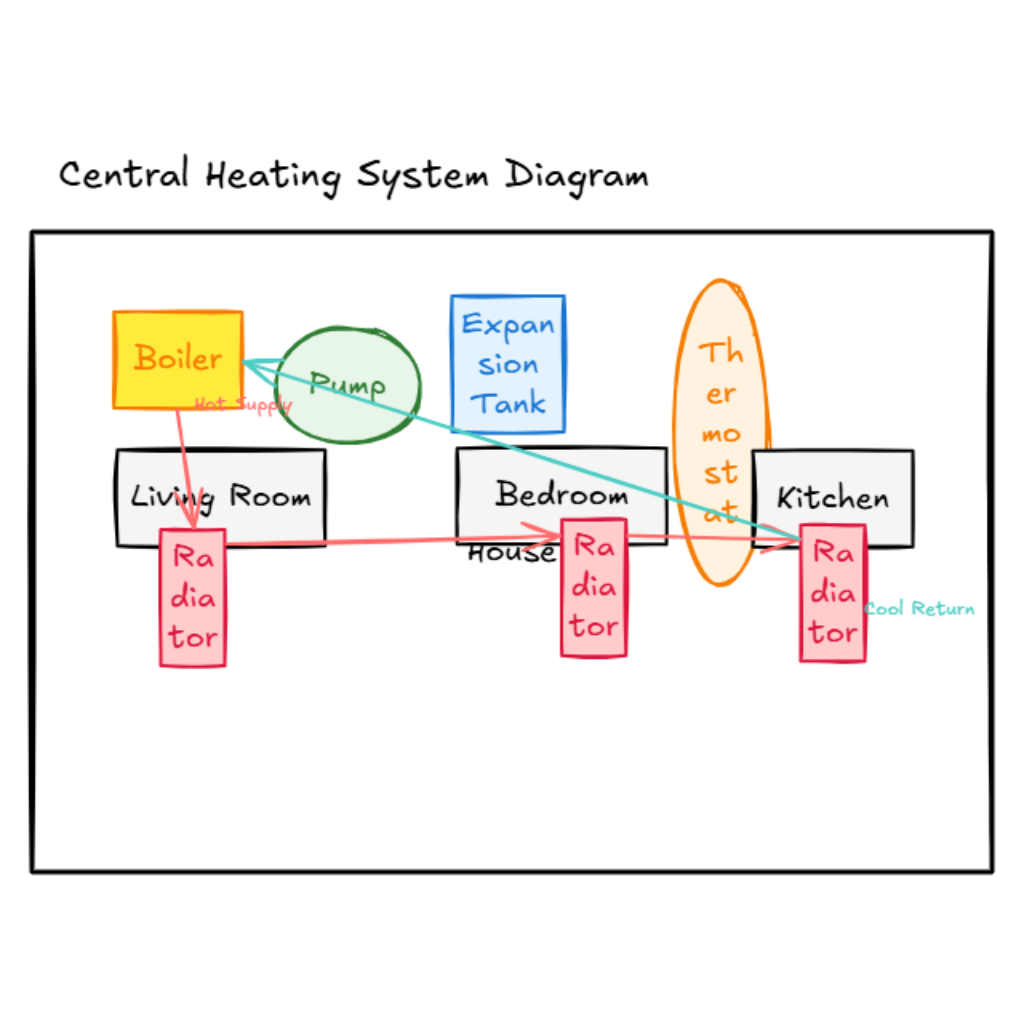
1. Central Heating System Diagram
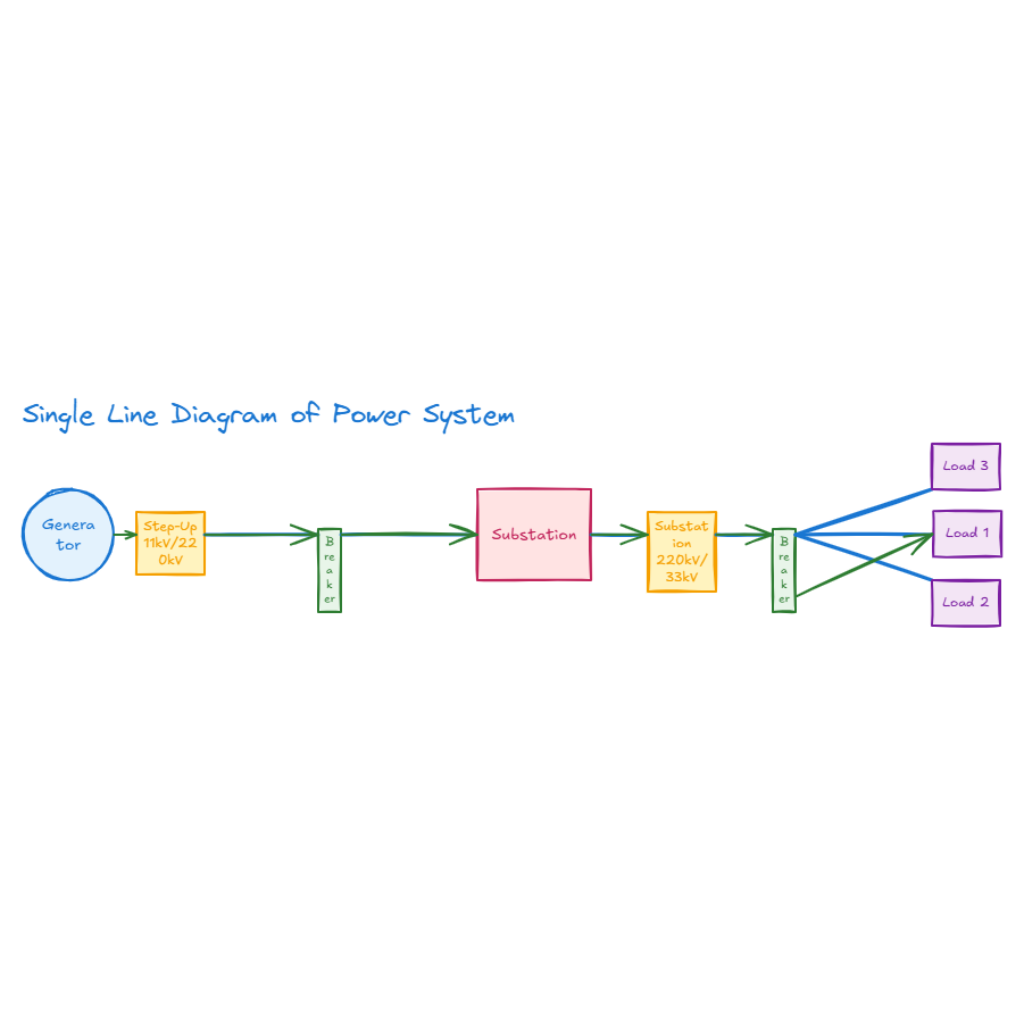
2. Single Line Diagram of Power System
3. Fish Respiratory System
These references help you plan your next Warehouse Control System (WCS)